Table of Contents
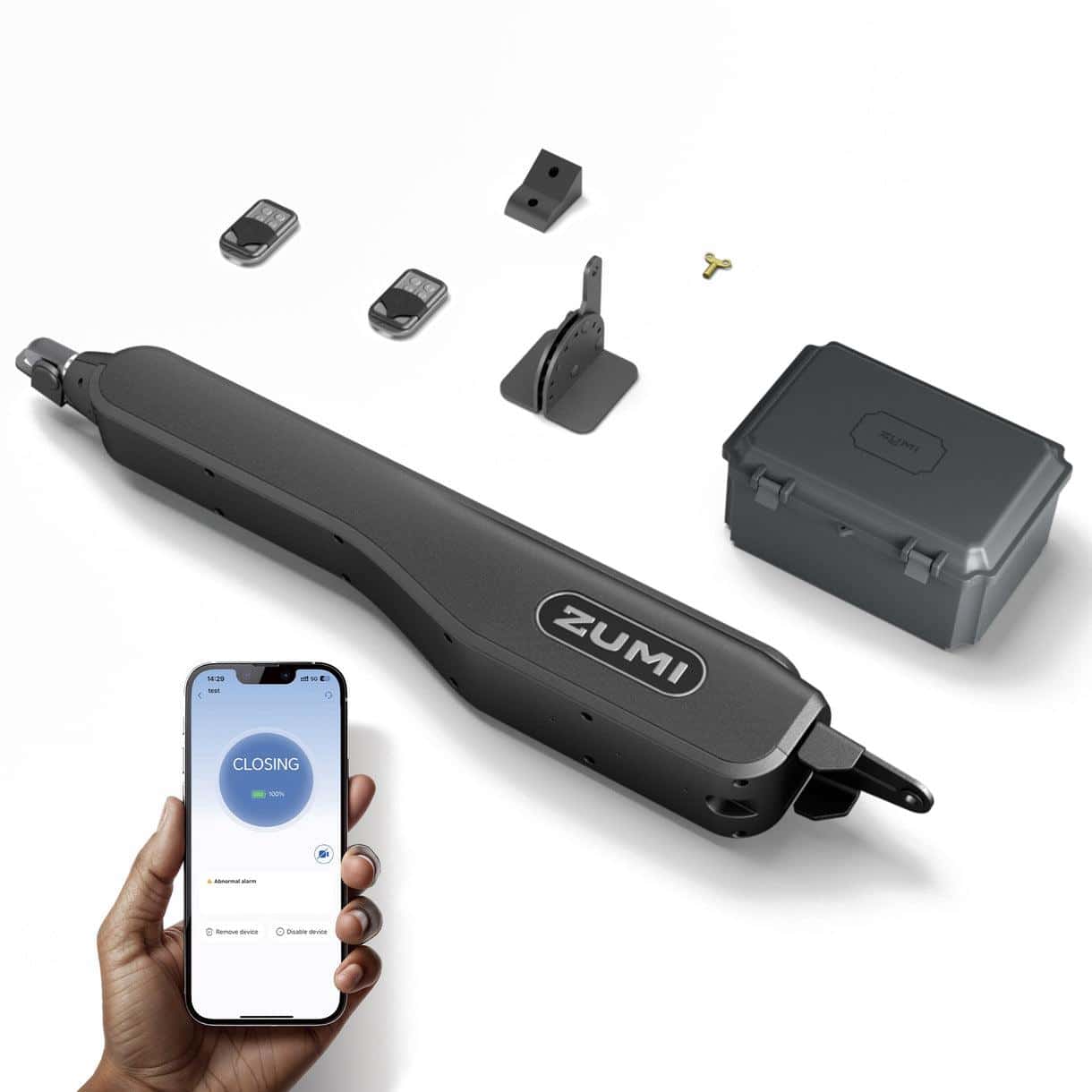
So, you’ve just installed your sleek new Zumi Gate Opener, or perhaps you’ve added a new driver to the family and need an extra remote. One of the best things about the Zumi system is that it moves away from those clunky, old-fashioned “dip switches” and uses modern, secure pairing technology.
Because Zumi utilizes 128-bit rolling code encryption, your remote and your gate’s “brain” (the control board) need to perform a digital handshake to work together. Here is exactly how to get your remote synced up in less than two minutes.
Before You Begin: The Pre-Check
To ensure the programming goes smoothly, check these two things:
- Fresh Battery: Ensure your Zumi remote has a functional CR2032 (or equivalent) battery. If the small LED on the remote doesn’t light up when pressed, it won’t pair.
- Clear Access: You will need to open your gate’s control box to access the main circuit board.
Step 1: Access the Control Board
Locate the weatherproof control box (usually mounted near the motor or on the fence post). Unlock or unscrew the cover to reveal the Zumi control board.
Look for the digital display or the cluster of small buttons. You are looking for the button labeled “STUDY” or “LEARN.”
Step 2: Enter Pairing Mode
- Press and Release: Press the “STUDY” (or Learn) button on the control board once.
- Watch the Indicator: On most Zumi models, the digital display will show a specific code (like “OS”) or a red LED indicator will begin to blink. This means the board is “listening” for a new remote signal.
- Note: You usually have about 10–15 seconds to complete the next step before the board times out.
- Note: You usually have about 10–15 seconds to complete the next step before the board times out.
Step 3: Sync the Remote
- The Double Click: While the board is in pairing mode, take your handheld Zumi remote and press the button you wish to use twice.
- Wait for Confirmation: The control board will typically “beep” or the digital display will flash to confirm it has successfully stored the remote’s unique ID.
- Test It: Wait a few seconds for the board to exit pairing mode, then press the remote button again. Your gate should start to glide open!
How to Delete Old Remotes (Security Reset)
If you’ve lost a remote and are worried about security, you should wipe the memory and re-program your remaining remotes.
- The “Long Press”: Press and hold the “STUDY” button for about 8–10 seconds.
- The Clear: The LED will blink rapidly or the display will clear. This wipes all stored remotes from the system. You will then need to repeat the pairing steps above for the remotes you still have.
Troubleshooting Tips
- Range Issues: If the remote only works when you are standing right next to the gate, check the antenna wire on the control board. It’s usually a small purple or gray wire. Ensure it isn’t curled up inside the box; it should be straightened out or poked through the bottom of the box for maximum signal reach.
- “Memory Full”: Zumi boards can typically hold up to 120 remotes. If the board refuses to pair a new one, you might need to perform the “Long Press” reset mentioned above to clear out old slots.
- App vs. Remote: Remember, if you use the Zumi Smart App, you don’t necessarily need the physical remote! You can share “Digital Keys” with family members directly through the app, which is often easier than managing physical hardware.
Solar Efficiency in 2026: The 30W Monocrystalline Edge
For those living off-grid or in sun-starved regions, the 2026 Zumi Solar Kits (WS1 Pro and WS2 Pro) have received a hardware boost.
- The 30W Standard: While 10W or 20W panels were the norm, Zumi has moved to high-efficiency 30W monocrystalline panels for Pro models. These boast a 21-23% conversion rate, meaning they can charge your 12V 8Ah battery even on overcast winter days.
- IP67 Waterproofing: The solar charge controllers have been upgraded to IP67, making them fully submersible (though we don’t recommend it!). This ensures that even in the most humid or flood-prone environments, your power management stays dry.
- MPPT Charging: The 2026 control boards now feature internal Maximum Power Point Tracking (MPPT) logic, which “squeezes” more energy out of your solar panel during dawn and dusk than older PWM controllers.
Need More Remotes?
Zumi systems are designed to be expandable. Whether you need a 4-button visor remote for the car or a waterproof wireless keypad for the pedestals, the “Study” process remains largely the same.